What is the iLok License Manager? Full Explanation
It is a common scenario for modern audio producers: you purchase a premium plugin from a renowned developer, download the installer, and open your Digital Audio Workstation (DAW). However, instead of the plugin interface, you are greeted with a prompt that reads, “Please authorize via iLok”. For beginners, this introduces immediate confusion and concern over whether additional hardware purchases are required.
When a user asks what is an ilok, they are usually encountering the industry-standard digital rights management (DRM) system for professional audio software. This system acts as a digital wallet for software authorizations.
This article explains exactly what an iLok license manager is, why it exists, how to set up an ilok account, and crucially, why purchasing a physical USB flash drive is largely optional in 2026.
Introduction
To navigate this system without frustration, it is necessary to separate three distinct terms that are often used interchangeably:
- iLok ID: Your free digital account username (your login).
- iLok License Manager: The free desktop software application used to organize and activate your software.
- iLok USB: The physical hardware dongle that holds licenses (optional for most modern users).
Many users mistakenly believe that a prompt to “authorize via iLok” means they must buy a physical key. In reality, it usually just means creating a free account.
Why Do Plugin Developers Use iLok?
The audio software industry faces significant challenges with software piracy. Developing high-end audio algorithms, such as those found in plugins by Slate Digital, Neural DSP, or Soundtoys, requires years of research and development. To protect their intellectual property, developers utilize PACE Anti-Piracy technology, which powers the iLok manager ecosystem.
While DRM systems are often viewed as an inconvenience, the license manager from iLok provides a distinct benefit to the user: a centralized vault. If a user’s computer crashes, their hard drive fails, or they upgrade to a new machine, their expensive software investments are not lost. Every purchased ilok license is stored securely in the cloud under their account, ready to be retrieved.
Do I Need to Buy a Physical iLok USB Dongle in 2026?
The short answer for 90% of home producers is no.
Historically, during the era of the first and second-generation iLok systems, purchasing a physical iLok key was mandatory. This created a stigma that persists today. However, the system has evolved. Today, most plugin developers support three different activation methods:
- Machine Activation: The license is bound directly to the hardware ID of your specific Mac or PC. This is completely free and requires no hardware dongle.
- iLok Cloud: The license is hosted on PACE servers, and your computer verifies it via an active internet connection. This is also completely free.
- iLok USB Dongle (Generation 3): The license is loaded onto a physical USB drive.
You only need to buy an ilok usb dongle if you frequently travel between different commercial studios without reliable internet access, or if you purchase software from a developer that strictly requires hardware activation (which is becoming increasingly rare).
How to Use the iLok License Manager (Step-by-Step)
Setting up the system requires a one-time configuration. Follow these steps to authorize your audio software.
Step 1: Create an Account
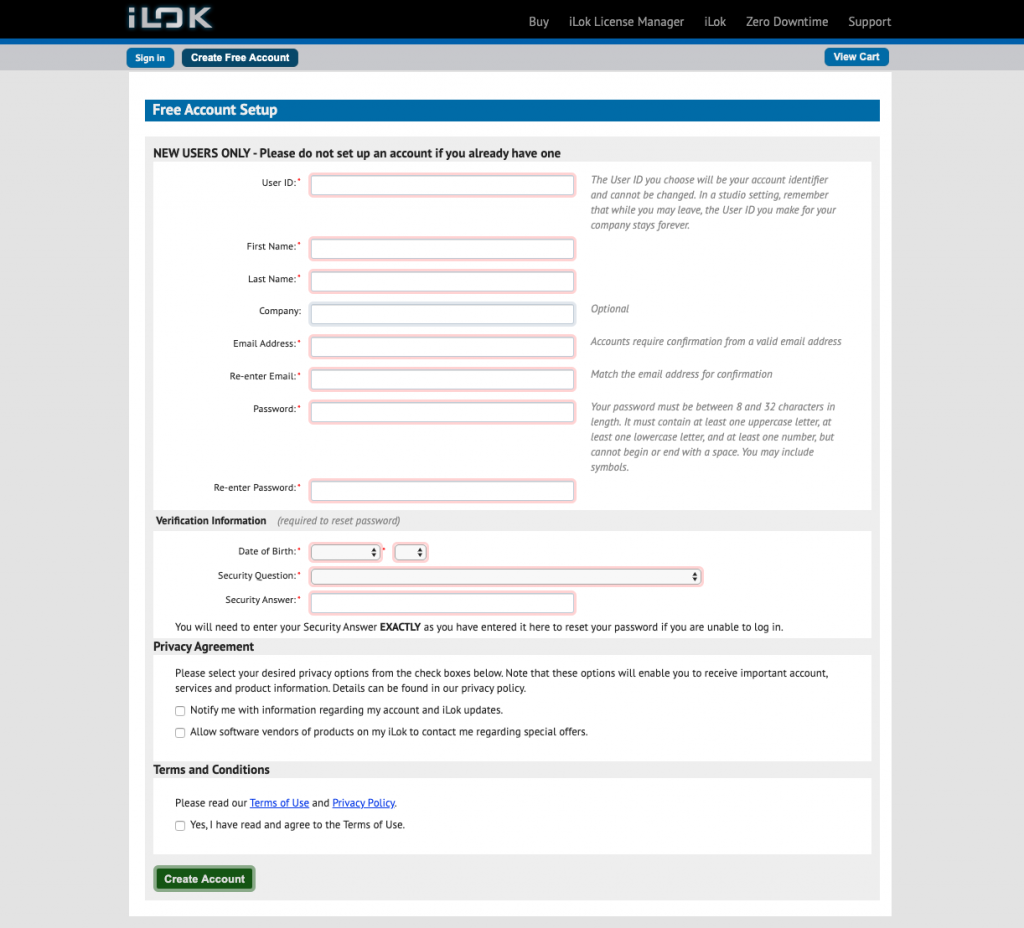
Navigate to ilok.com and create a free user profile. The username you choose will become your iLok ID. You will provide this ID to plugin developers when checking out on their websites.
Step 2: Download and Install
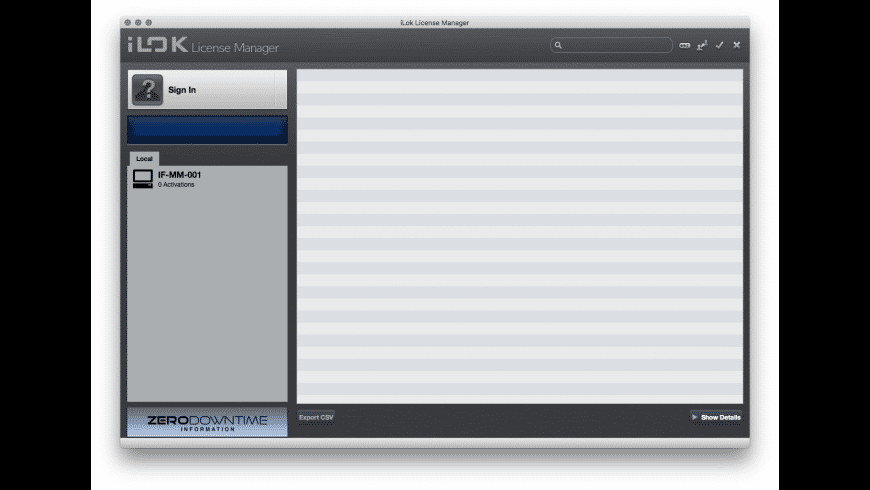
Locate the download iLok section on the official website. Proceed to complete the iLok download for your specific operating system (macOS or Windows). Install the application and restart your computer if prompted.
Step 3: Redeem Your Code
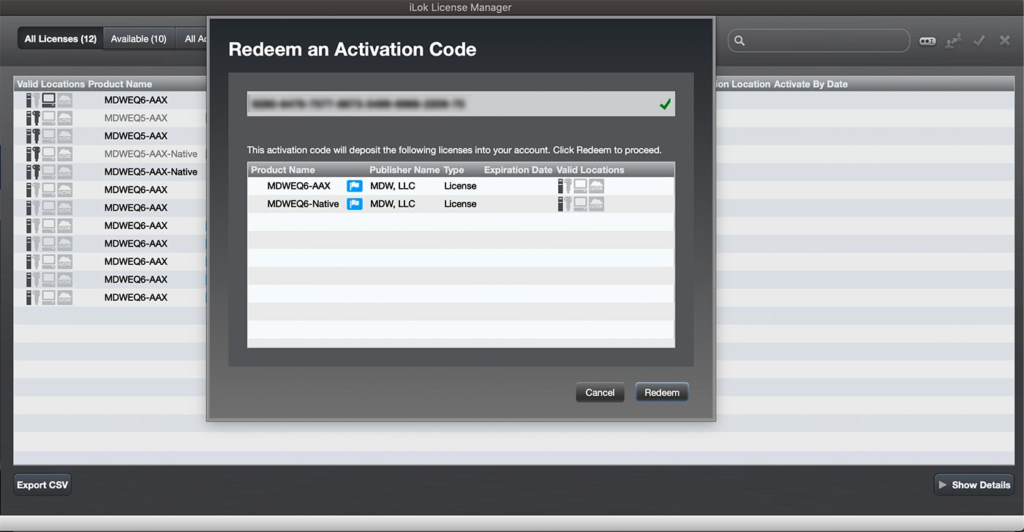
Launch the iLok manager and sign in using your iLok ID. If you purchased a plugin and received a serial number, navigate to the top menu bar and click Licenses -> Redeem Activation Code. Paste your code here to deposit the ilok license into your account.
Step 4: Activate the License
Once redeemed, the plugin will appear in the Available tab. To activate it, simply click and drag the license block onto your computer’s icon (listed under the Local tab on the left sidebar) or onto your iLok Cloud session.
Enjoyed this guide? Don’t miss other articles!
When Was Autotune Invented – A history of the most popular plugin.
Pro Tools VS Fl Studio – Beatmaker flow or Professional standard?
iLok Cloud vs. Machine Activation: Which is Better?
If you opt out of buying the physical ilok key, you must choose between the two free software activation methods.
Machine Activation
- Pros: It works entirely offline. Once activated, you can produce music in a cabin in the woods, on an airplane, or anywhere without Wi-Fi.
- Cons: The license is tied to that specific motherboard/hard drive. If you plan to sell or format your computer, you must remember to open the license manager ilok and deactivate the license first, returning it to your account pool.
iLok Cloud
- Pros: Highly flexible. You can close your laptop at home, travel to a friend’s studio, log into your ilok account on their computer, and instantly open an ilok cloud session to access your plugins.
- Cons: It requires a persistent, “always-on” internet connection. If your Wi-Fi drops out even for a few seconds, the plugin will freeze your DAW and display an authorization error until the connection is restored.
Common iLok Errors & Troubleshooting
Even the most robust systems occasionally encounter errors. Here are the most common issues and their pragmatic solutions.
- Error: “Pace License Data Out of Date” or “Software Component Unavailable”: This indicates that the background service (paceadsrv) has stopped running. On Windows, open the Services app, locate PACE License Services, right-click, and select Restart. On macOS, reinstalling the manager using the latest iLok download usually resolves background daemon issues. Check also this Sweetwater’s guide for iLok troubleshooting issues.
- Missing Licenses: If you purchased a plugin, linked your iLok ID, but the license is not appearing in your available list, click the File -> Synchronize button. This forces the application to ping the main servers and refresh your inventory.
- Zero Activations Available: If you attempt to activate a license but receive an error that you have 0 of 2 activations available, it means the license is stuck on an old, inaccessible computer. You will need to contact the specific plugin developer to have them manually reset your activation count.
Conclusion
Initially, the requirement to install third-party authorization software can feel like an unnecessary hurdle. However, understanding what an iLok ecosystem is reveals a secure, centralized hub that protects your expensive digital assets.
Whether you utilize a physical iLok usb dongle for studio mobility, Machine Activation for offline stability, or iLok cloud for multi-device flexibility, the system is designed to ensure you never permanently lose access to your studio tools. Once your licenses are locked in, you can close the manager and return your focus entirely to the creative process of music production.
FAQ
An iLok is a DRM (Digital Rights Management) system. It refers to both the physical USB key that holds software licenses and the software manager application used to authorize audio plugins.
Yes. Creating an iLok account and using the software application to authorize your plugins via Machine Activation or Cloud Activation is 100% free.
Yes, in most cases. You can transfer a license to another user’s iLok ID through the manager application. However, PACE typically charges a transfer fee (usually around $25 per license, capped at a maximum fee for bulk transfers).
If you lose an iLok key, the licenses on it are also lost unless you are subscribed to PACE’s Zero Downtime (ZDT) coverage. ZDT provides immediate temporary licenses while you negotiate with plugin developers to issue permanent replacements. If you do not travel, keeping licenses on your computer via Machine Activation is often safer.